How To Crack A Password Protected Blog

Also keep in mind that all the admins for these blogs have the ability to change or remove the password protection. To password-protect a secondary blog (only possible on the web, rather than in the app). Click 'Settings' under the account menu (the person silhouette) at the top of the dashboard. Click your secondary blog.
I found a pretty easy way of disabling the password protection in the new Excel Worksheet files (XLSX) used by Excel 2007 and 2010. Just follow these simple steps:. Change the file extension from.XLSX to.ZIP. Extract the file to a folder with your favorite unzipper (7-Zip is what I used). Go to the xlworksheet sub-folder that you just extracted.
There should be one or more files named like: sheet1.xml (sheet2.xml, etc). Inside of one of those files is an XML tag:. Delete that entire XML tag. Re-zip the files back up.
Rename from.ZIP to.XLSX Done! UPDATE: This method only applies to password protected workbooks. If the file is secured with the “Encrypt with Password” feature, it will not work. UPDATE 2: It is important that you don’t have Windows configured to hide file extensions (which unfortunately is the default behavior). To enable displaying file name extensions, follow this. I could not get the file to open after re-zipping and changing the ext back to xlsx so I tried something different.
- Cracking Password Protected Word, Excel, and Powerpoint Documents Password cracking a Word document or an Excel file has become much easier. Previously you had to rely on a flaw in the document, some sketchy software or an even sketchier website. Since October 2014 OclHashcat now supports cracking the documents password. The process is simple.
- The surest way to find out if your post is password protected is by logging out of the blog yourself and going to your blog as a logged off user. If you see your post still password protected then it's safe. When you logged in, once you enter the password it'll stay open even though you exited the main page.
After un-zipping, In the xl folder I opened the “workbook.xml” file with notepad, searched for password. In the code “workbookPassword=”94B3″ changed to workbookPassword=”” and saved. Then went into worksheets folder and opened “sheet1.xml”, searched for password.
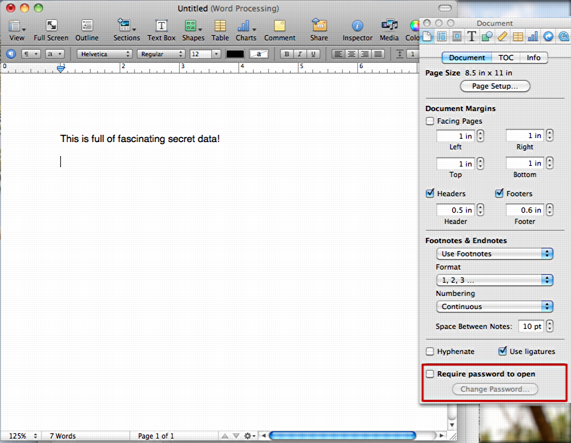
How To Crack Password Protected Blog
In the code “Password=”94B3″ changed to Password=”” and saved. Zipped it back up and changed ext back to xlsx, opened the file and turned off protection, no password required. That sounds like it could be from a Windows permissions error. You probably need to be running in a UAC elevated context. UAC elevation occurs when you see a prompt like this: There’s a few ways you can approach this:.
Run notepad.exe as admin: right click the Notepad icon, choose “Run as Admin”. Then open the file you want to edit from the File Open menu item in Notepad, make your changes and you shouldn’t have a problem saving them. Work with the files within your user profile folder (c:Usersyour username): For example, if you extract Book1.xlsx to a folder on your Desktop (C:Usersyour usernameDesktopBook1), you should be able to edit any files in there without needing to elevate UAC permissions. Lastly, you can save the file to your desktop, then copy and paste it to the original destination through Windows Explorer.
Windows Explorer should prompt you for UAC elevation at that time. Personally, I prefer doing the second option, so that way I don’t have to keep getting UAC privileges elevated. You would probably need to jump through these hoops again when you re-build the zip file, otherwise. Hope that helps! Make sure you extract them in a folder on your Desktop (or somewhere within your profile). That way you don’t need to edit the files with UAC privileges (AKA “run as admin” privileges).
After you edit the file, save it, close Notepad, and then try reopening it and see if it still has your modifications before you re-compress the zip. It sounds like something wasn’t saving, maybe due to some permission issue, or something on your machine is causing the file to revert back. I would think you would see an error message if you couldn’t save, though. Visionlab studio free full download. You may want to try something like or (a couple of great, free, notepad replacement apps).